

bt CLI to filter and edit individual records.
Organize datasets
Tag and star datasets
You can tag and star datasets to organize and find them in the datasets list. Tagging a dataset adds metadata that can be used to filter and group records, while starring a dataset causes it to sort first in the datasets table and dataset picker dropdowns. To tag datasets:- Go to Datasets.
- Select one or more datasets.
- Click Tag in the toolbar.
- Select or create tags to apply.
Tags are configured at the project level and shared across all objects — logs, experiments, dataset records, and entire datasets. See project tag settings.
Save snapshots
only available on Pro and Enterprise plans.
- UI
- API
- CLI
- Go to Datasets.
- Open your dataset.
- Click Snapshots > + Save snapshot in the toolbar. This option is available only when the dataset is non-empty and has changed since the last snapshot was saved.
- Rename: Give the snapshot a descriptive name.
- View: Open the snapshot in a read-only viewer.
- Evaluate in experiment or Evaluate in playground: Run an eval using the snapshot’s data.
- Environments: Assign the snapshot to one or more environments. See Assign to environments.
- Restore: Roll the dataset back to the snapshot’s state.
- Delete: Permanently remove the snapshot.
Define schemas
If you want to ensure all records have the same structure or make editing easier, define JSON schemas for your dataset fields. Schemas are particularly useful when multiple team members are manually adding records or when you need strict data validation. Dataset schemas enable:- Validation: Catch structural errors when adding or editing records.
- Form-based editing: Edit records with intuitive forms instead of raw JSON.
- Documentation: Make field expectations explicit for your team.
- Go to Datasets.
- Open your dataset.
- Click Field schemas in the toolbar.
- Select the field you want to define a schema for (
input,expected, ormetadata). - Click Infer schema to automatically generate a schema from the first 100 records, or manually define your schema structure.
- Toggle Enforce to enable validation. When enabled:
- New records must conform or show validation errors.
- Existing non-conforming records display warnings.
- Form editing validates input as you type.
Enforcement is UI-only and doesn’t affect SDK inserts or updates.
If your schema uses
pattern or patternProperties, those values must be RE2-compatible regular expressions. Lookahead, lookbehind, and backreferences are not supported and are rejected when you save the schema.Edit datasets
Read, update, and delete individual records programmatically.Filter records
- UI
- SDK
Filter dataset records using the Filter button in the dataset table. You can filter by any field —
input, expected, metadata, tags, or scores — using SQL expressions.- Go to Datasets and open your dataset.
- Click Filter.
- Add one or more filter conditions.
When you create an experiment from a filtered dataset view, the active filters are carried over so the run is scoped to the same subset of records.
Update records
- SDK
- CLI
Update existing records by The
id:update() method applies a merge strategy: only the fields you provide will be updated, and all other existing fields in the record will remain unchanged.Delete records
- UI
- SDK
- CLI
Flush records
The Braintrust SDK flushes records asynchronously and installs exit handlers, but these hooks are not always respected (e.g., by certain runtimes or when exiting a process abruptly). Callflush() to ensure records are written:
Review datasets
You can configure human review workflows to label and evaluate dataset records with your team.Configure review scores
Configure categorical scores to allow reviewers to rapidly label records. See Configure review scores for details.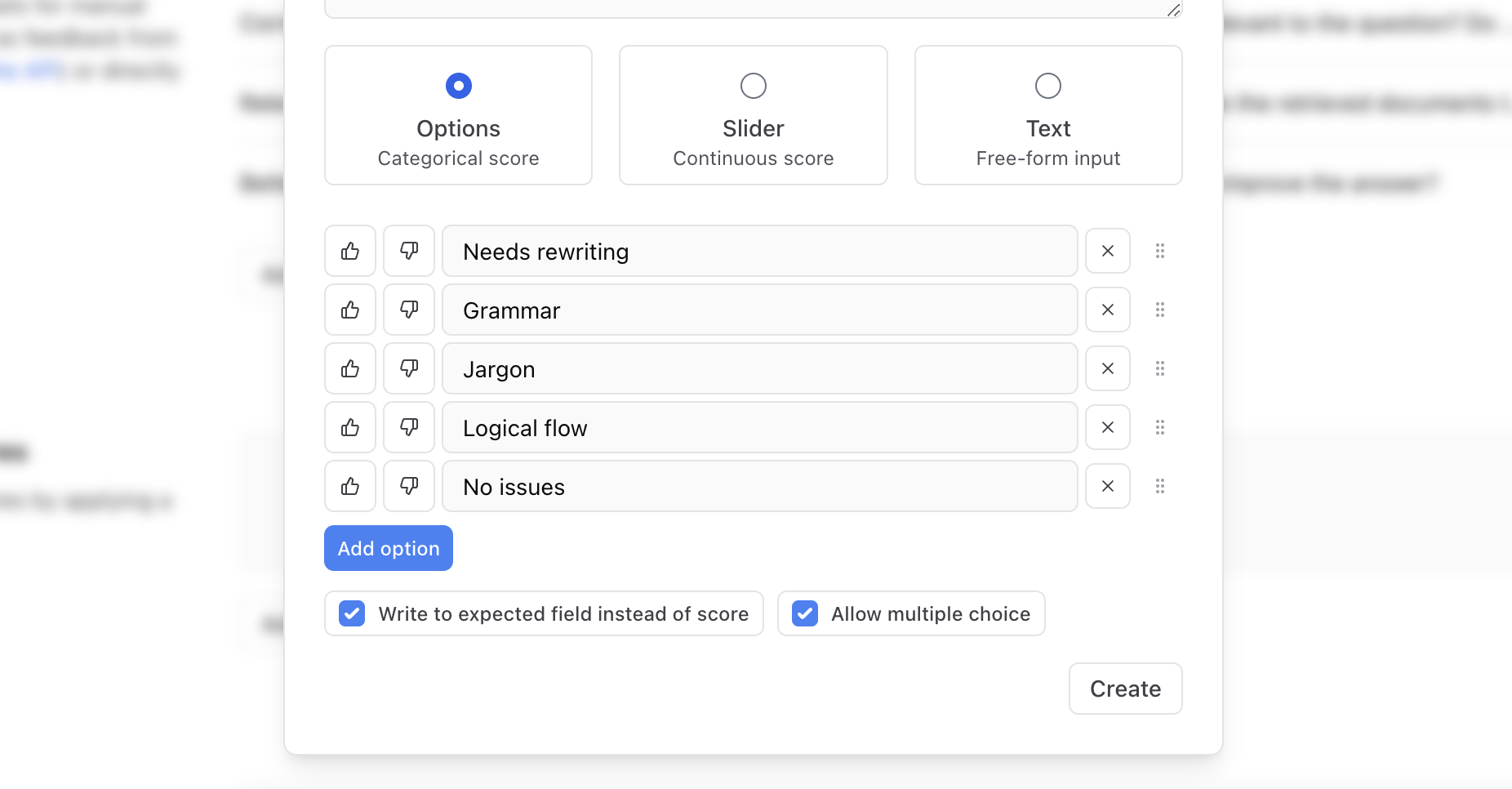
Assign rows for review
Assign dataset rows to team members for review, analysis, or follow-up action. Assignments are particularly useful for distributing review work across multiple team members. See Assign rows for review for details.Create custom dataset views
Custom dataset views let you build tailored interfaces for reviewing individual dataset rows. Open a dataset row, select Views, and describe the interface you want in natural language. Loop generates a customizable React component your team can use directly in Braintrust. See Custom dataset views for guidance on creating, editing, and sharing views.Customize table views
Tailor how dataset data is displayed in the UI by adding computed columns, saving custom views, and sharing views across projects.Create custom columns
Extract values from records using custom columns. Use SQL expressions to surface important fields directly in the table.Create custom table views
To create or update a custom table view:- Apply the filters and display settings you want.
- Open the menu and select Save view… or Save view as….
Custom table views are visible to all project members. Creating or editing a table view requires the Update project permission.
Set default table views
You can set default views at three levels:- Organization default: Visible to all members when they open the page. This applies per page. For example, you can set separate organization defaults for Logs, Experiments, and Review. To set an organization default, you need the Manage settings organization permission (included by default in the Owner role). See Access control for details.
- Project default: Overrides the organization default for everyone viewing this project. To set a project default, you need the project-level Update permission. Project admins can set project defaults even without organization-level permissions. See Access control for details.
- Personal default: Overrides the project and organization defaults for you only. Personal defaults are stored in your browser, so they do not carry over across devices or browsers.
- Switch to the view you want by selecting it from the menu.
- Open the menu again and hover over the currently selected view to reveal its submenu.
- Choose Set as personal default view, Set as project default view, or Set as organization default view.
- Open the menu and hover over the currently selected view to reveal its submenu.
- Choose Clear personal default view, Clear project default view, or Clear organization default view.
Duplicate table views across projects
If you’ve built a useful custom table view in one project, you can duplicate it to another project via the API rather than recreating it from scratch. Datasets have two customizable views:- Datasets list: The project’s Datasets tab, where each row is a dataset.
- Single dataset table: The rows of data inside one dataset.
view_type in the API call.
-
Use the list views API endpoint to fetch the dataset views in your source project. Pass the following query parameters:
object_type=projectobject_id=<source-project-id>view_type=datasetfor a single dataset table view, orview_type=datasetsfor the datasets list
-
In the response, find the view you want to duplicate and copy its
view_dataandoptionspayloads. -
Use the create view API endpoint to create the view in the destination project. Set
object_idto the destination project ID.
Share a dataset
Copy a dataset’s URL from your browser to share it. For a portable link that resolves regardless of organization or project, use its ID:Next steps
- Use datasets in evaluations with
Eval(). - Track performance across experiments.